Sharing and permissions
Explains how to invite teammates, share agents and manage access.
ollo is designed to help teams work together while making sure the right people have access to the right information.
This guide explains how to invite teammates, share agents and manage access across ollo.
Estimated time: 5-10 minutes
What you'll learn
By the end of this guide you'll understand how to:
Invite teammates to ollo
Share an agent with others
Understand different levels of access
Change or remove access
Keep your organisation's knowledge secure
Understanding access in ollo
Before sharing content, it's important to understand that access can exist at different levels. Depending on your organisation's setup, this may include access to:
Your ollo workspace
Connected knowledge sources
Search
Individual agents
Agent editing and configuration
The options available to you will depend on your role and your organisation's permissions.
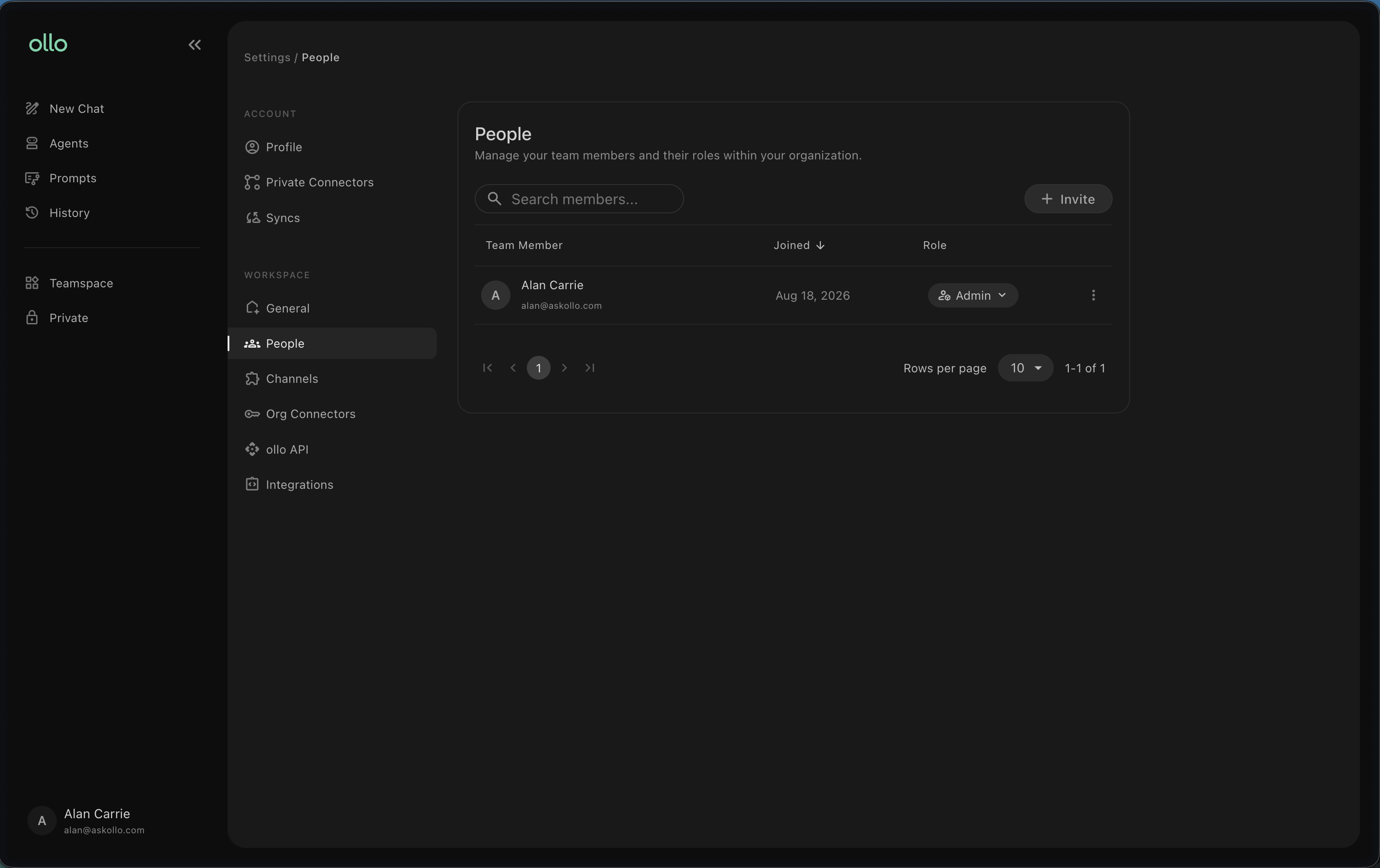
Inviting teammates
If you have the appropriate permissions, you can invite other people in your organisation to ollo.
Navigate to your team or workspace settings and select Invite. Enter the email of the person you'd like to invite, select their role and send the invite to give them access.
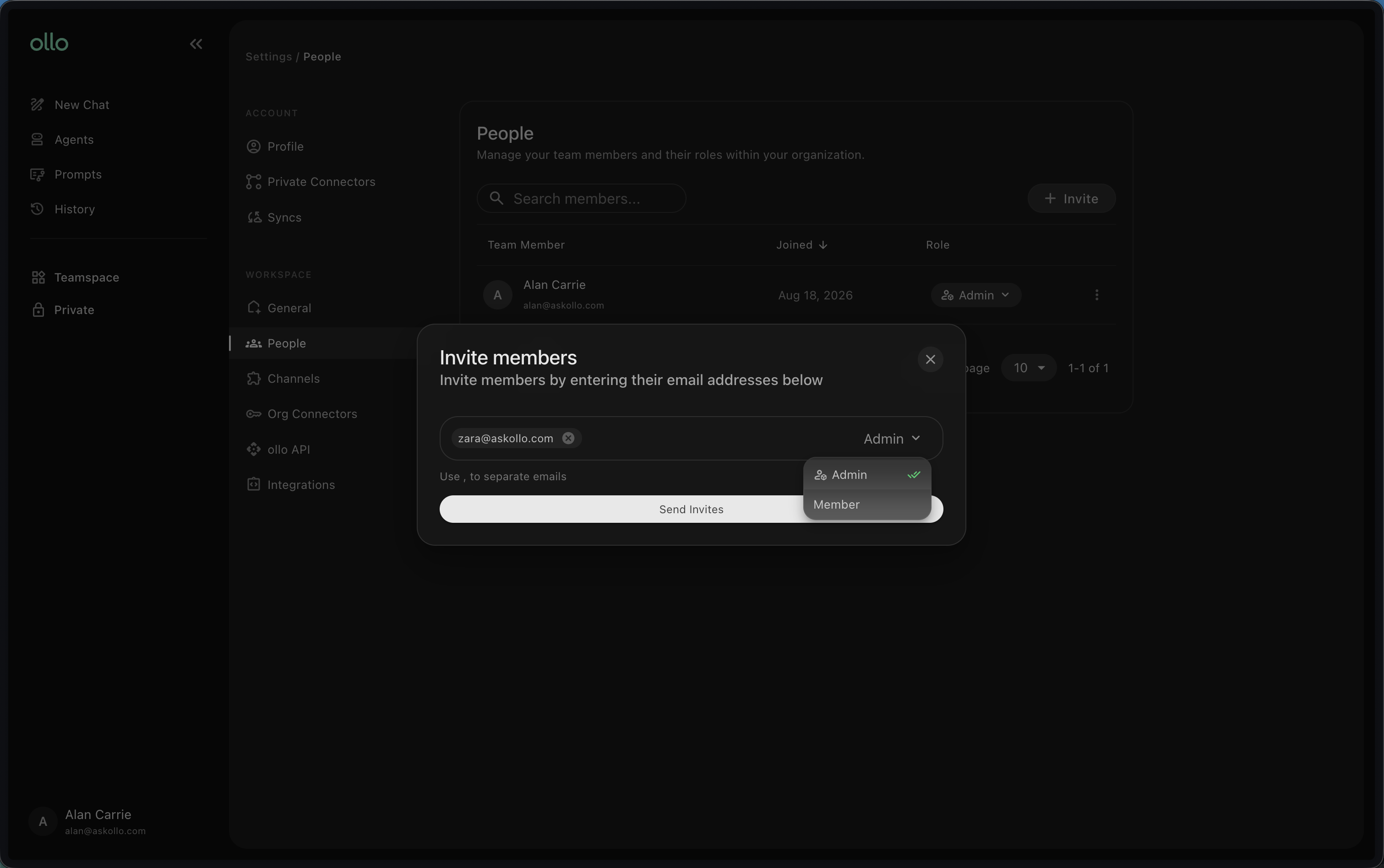
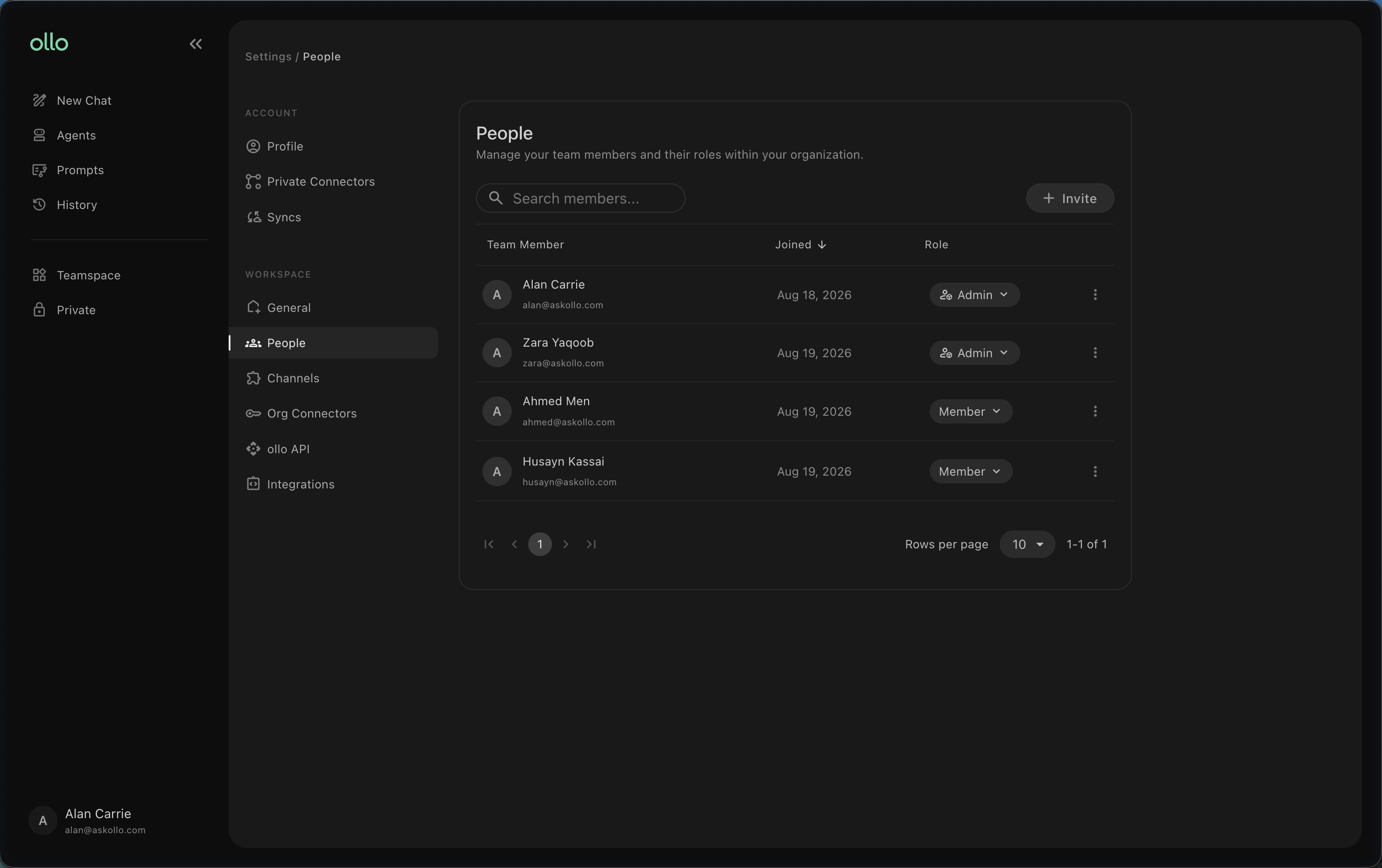
Managing your team
Once someone has joined, you can view the people who currently have access to your workspace.
Depending on your permissions, you may also be able to:
View existing members
Invite new members
Change someone's level of access
Remove someone from the workspace
Regularly reviewing access helps ensure that only the appropriate people can use your organisation's ollo environment.
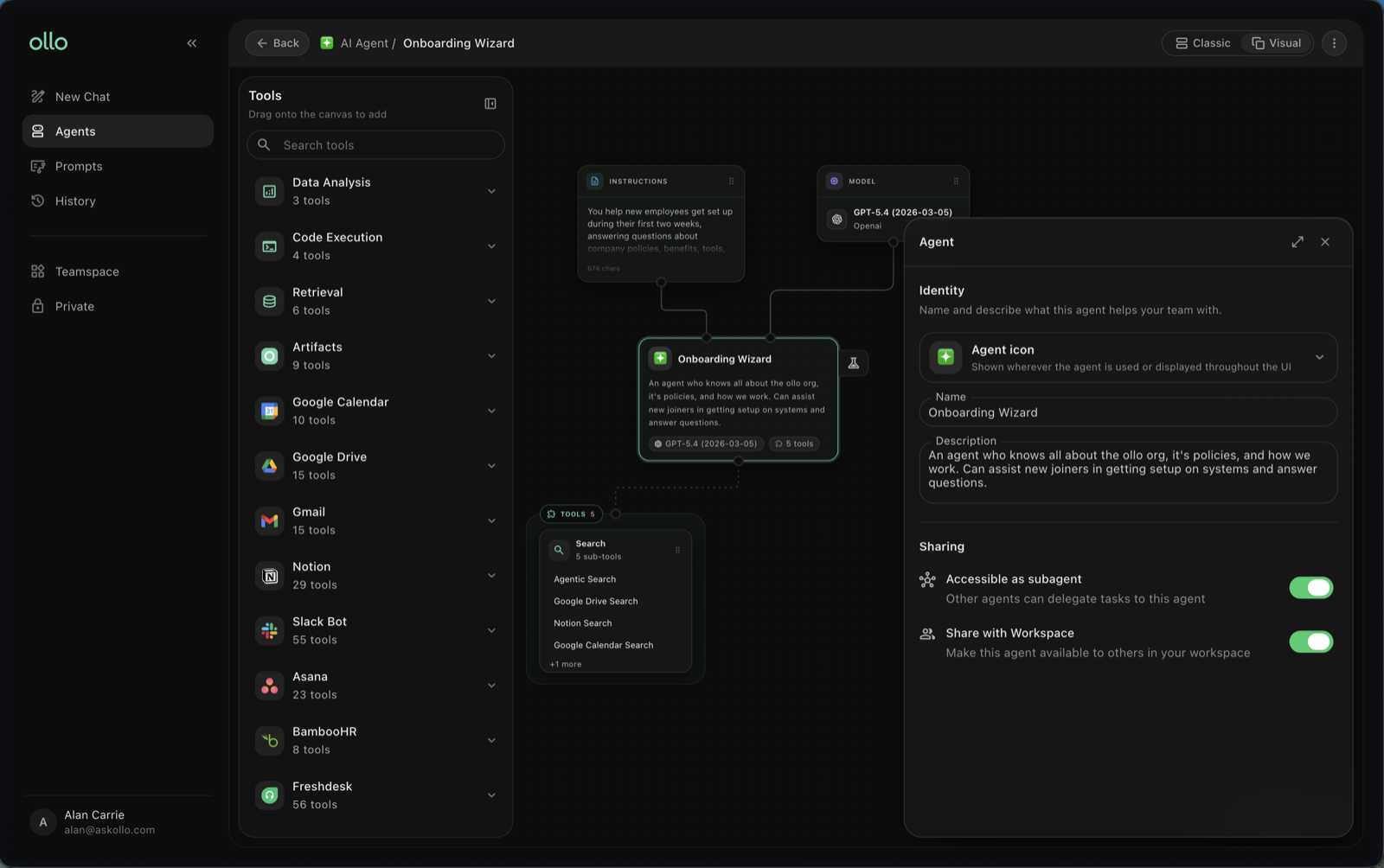
Sharing an agent
Once you've created and tested an agent, you may want other people to use it.
Open the agent you'd like to share and find its sharing settings underneath the name and description in the Visual builder, or at the bottom of the Overview tab in Classic view.
Toggle whether the agent is shared with everyone in the workspace.
Using shared agents
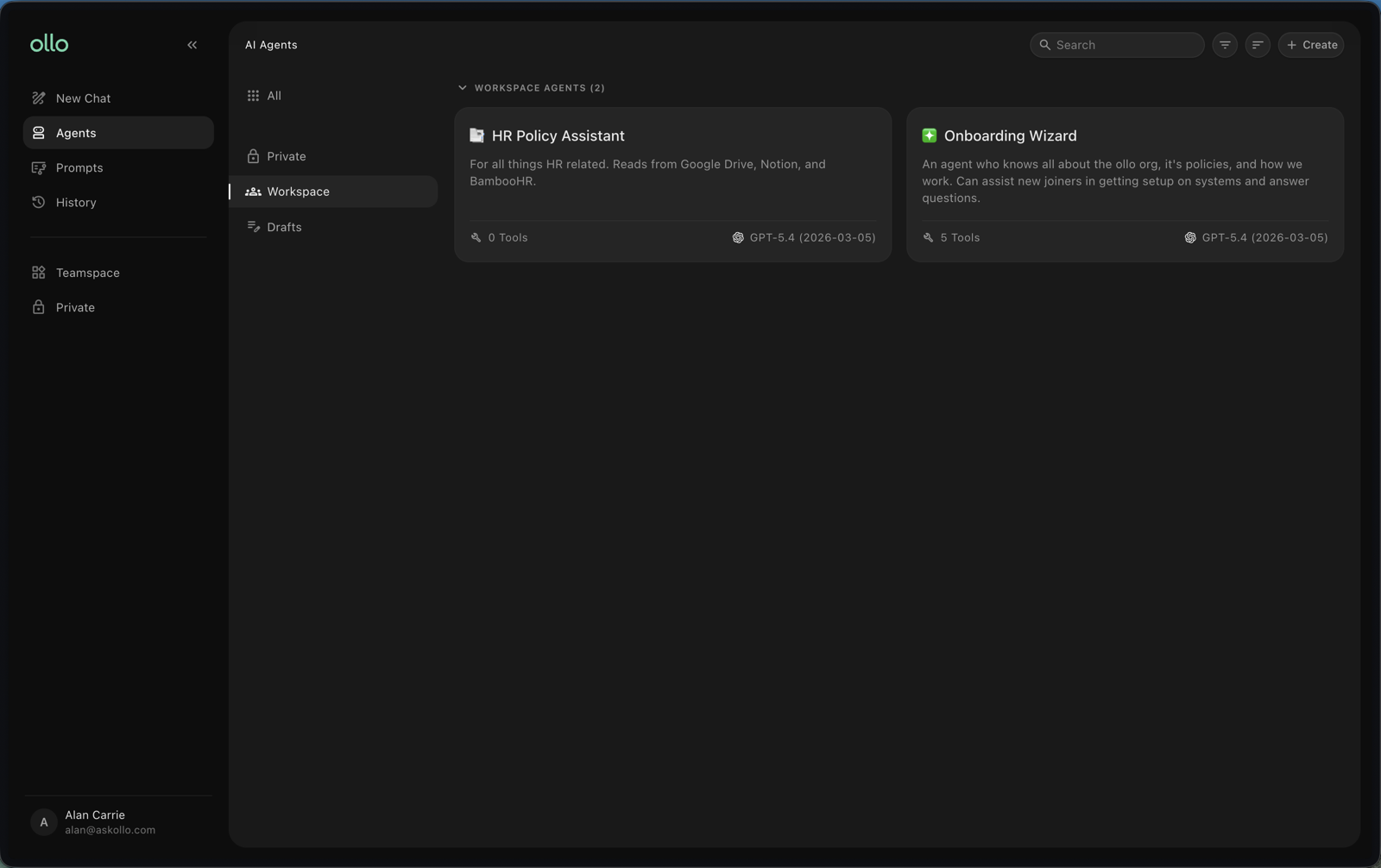
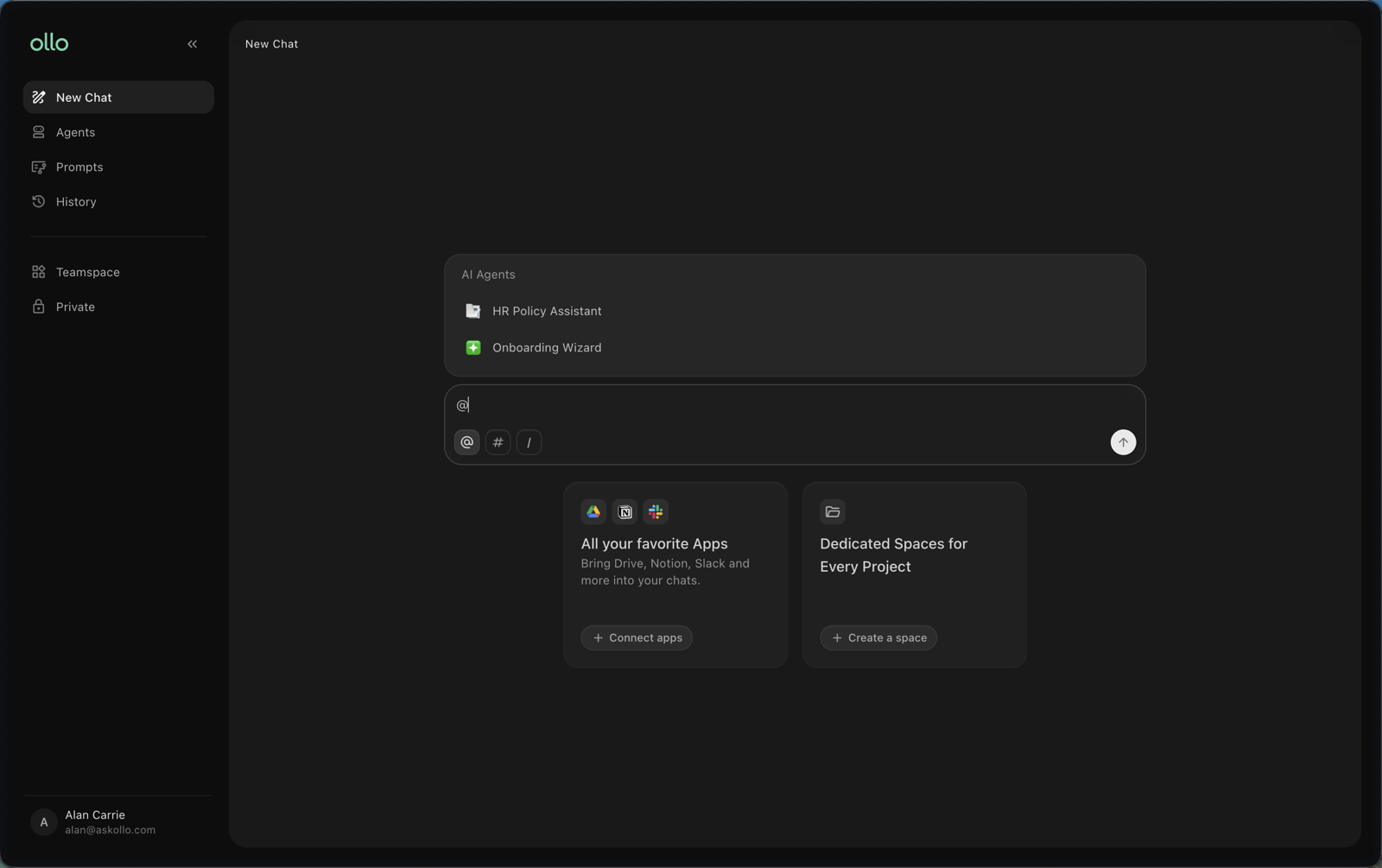
When someone shares an agent with the workspace, you'll be able to access it according to the permissions you've been given.
You can then use the agent to ask questions or complete the tasks it was designed for. Whether you can make changes to the agent will depend on your level of access.
Editing access
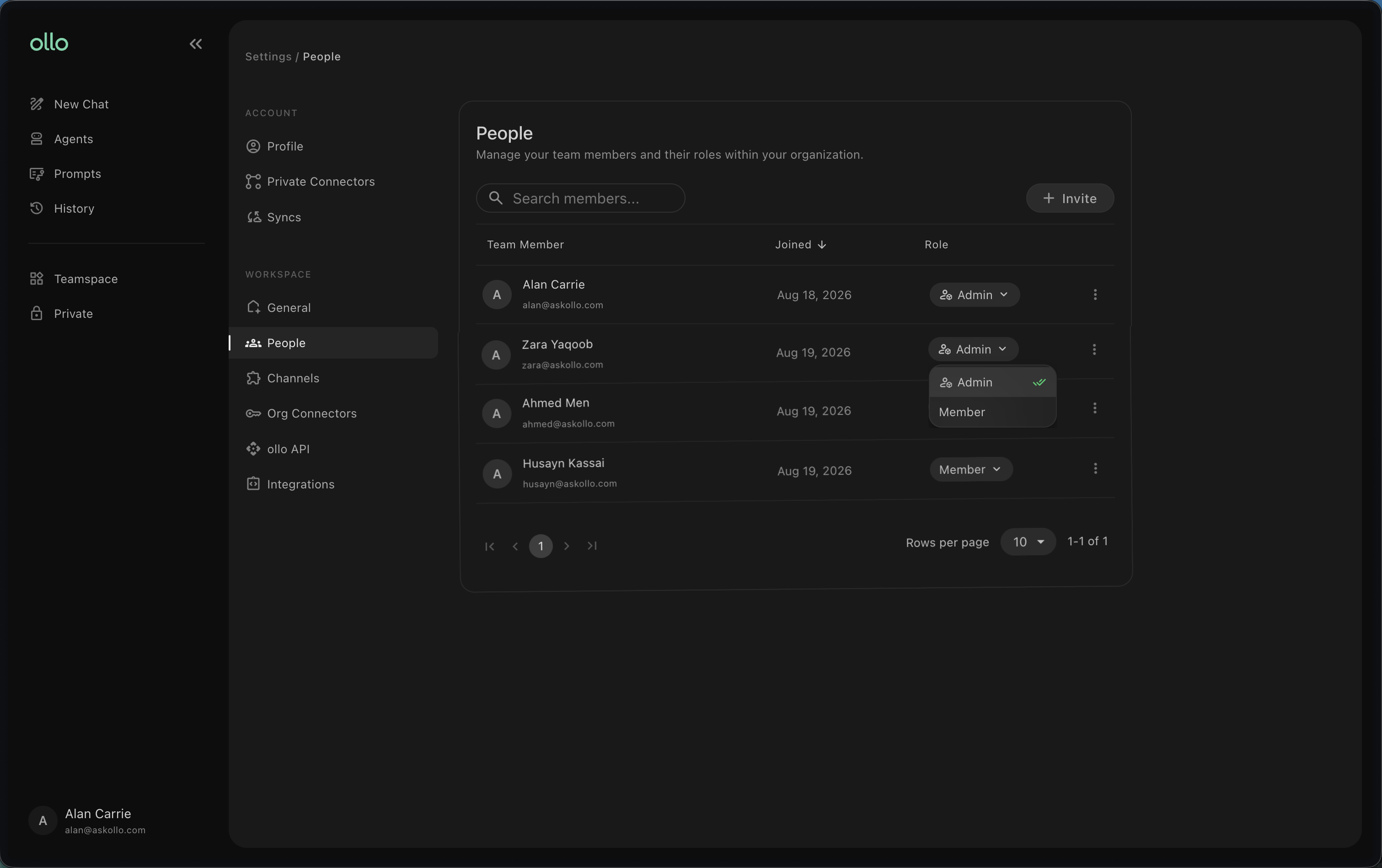
Access requirements can change over time. If you are a Workspace Admin, you can manage the users within the workspace. This may include:
Adding new users
Removing existing users
Changing someone's role
Removing access
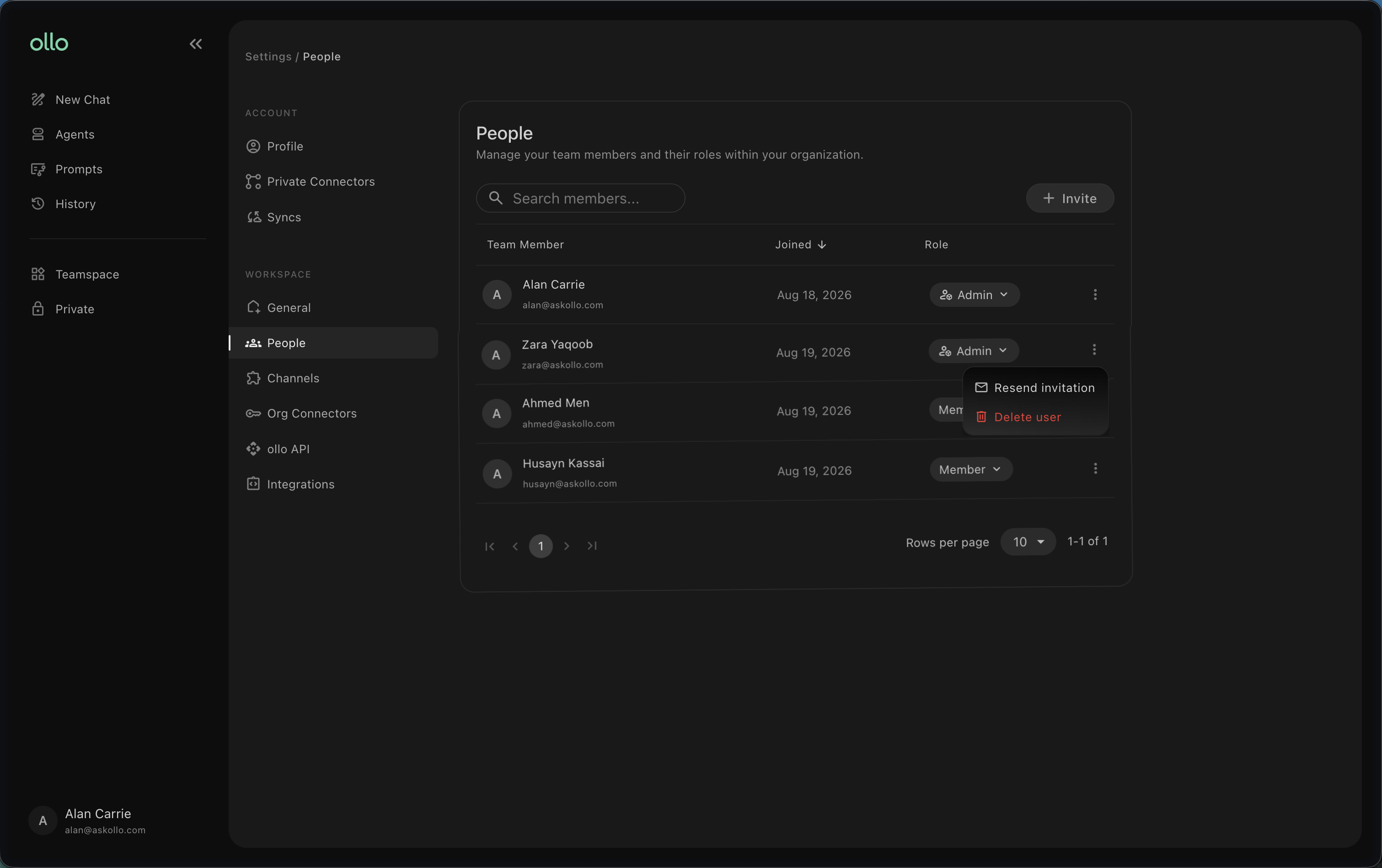
If someone should no longer have access to the workspace, delete their user via the People settings. This may be necessary when:
Someone changes teams
Someone leaves your organisation
How permissions affect Search
The information someone can find through Search should reflect the knowledge they're authorised to access.
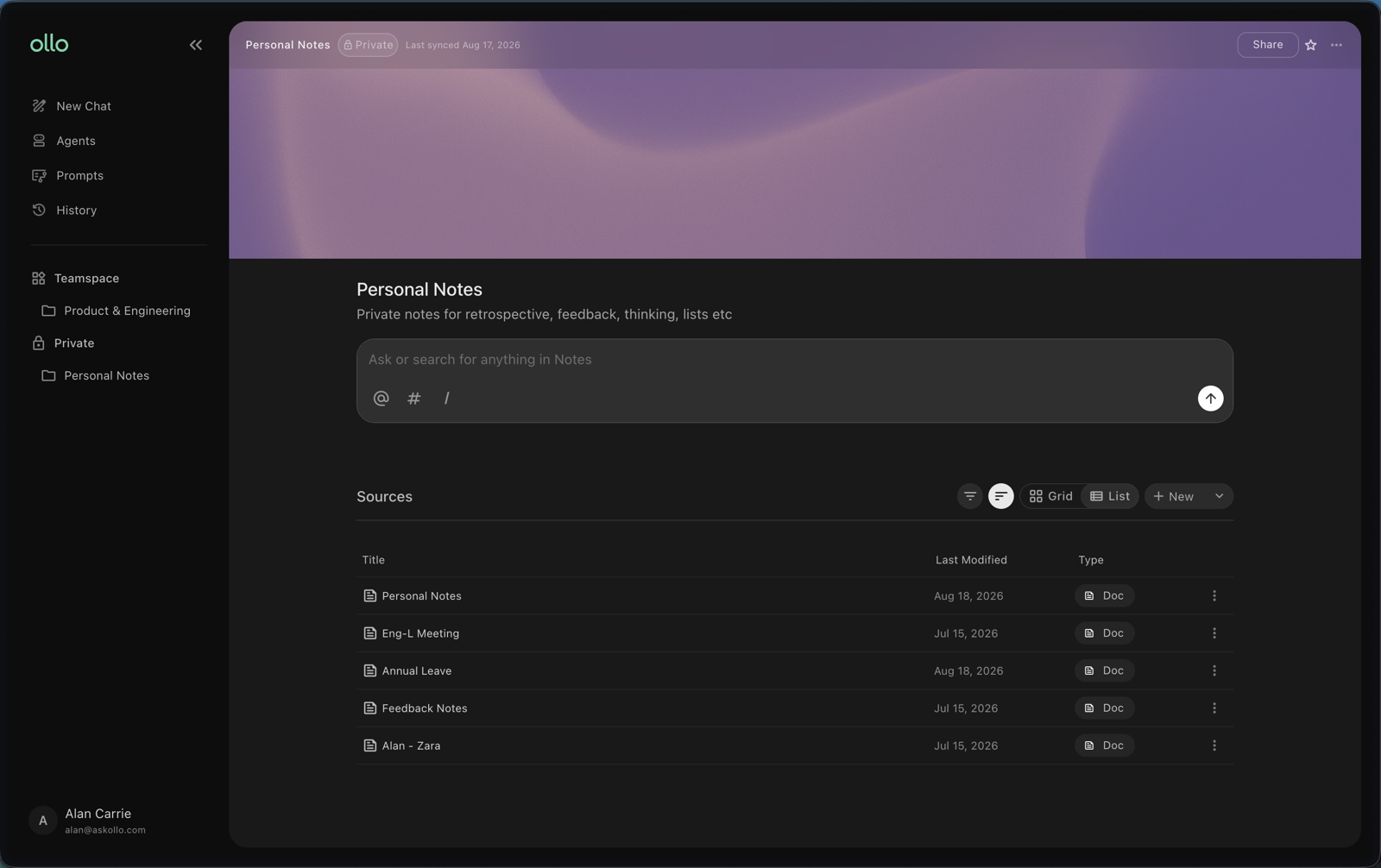
The data in Teamspaces is searchable by all users in the workspace. Individual users can create Spaces which are private to only them: data in there is only searchable to the user who created the space. This means two people may not necessarily see the same information when using Search.
Best practices
When managing sharing and permissions:
Give people access only to what they need.
Review permissions when someone's role changes.
Remove access when it's no longer required.
Consider the knowledge an agent can access before sharing it.
Regularly review workspace membership and shared agents.
Frequently asked questions
Can everyone in my organisation see my agents?
Not necessarily. Access depends on how the agent has been shared and your organisation's permissions.
Can I change who has access after sharing an agent?
Yes. If you have the appropriate permissions, you can return to the sharing settings and update access.
Does sharing an agent give someone access to all of our company knowledge?
No. Access to an agent should not automatically give someone unrestricted access to your organisation's knowledge. What a user can access will depend on the permissions configured within your organisation.
What happens if someone leaves the organisation?
Their workspace and agent access should be removed as part of your organisation's offboarding process.
Next steps
Now that you understand sharing and permissions, you can start bringing your team into ollo and sharing the agents you've created.
You may also want to explore:
Build your first agent
Test and improve your agent
Search and Agent Builder together