Getting started
A complete getting started guide from signup through to first value, to be updated as the self-serve experience evolves.
Welcome to ollo.
This guide will take you from signing in for the first time to successfully searching your organisation's knowledge and exploring Agent Builder. As the self-serve experience evolves, this guide will be updated to reflect the latest onboarding journey.
Estimated time: 10-15 minutes
What you'll learn
By the end of this guide you'll know how to:
- Navigate the ollo platform
- Connect your knowledge sources
- Search your organisation's information
- Explore Agent Builder
- Know where to go next
Before you begin
Before starting, make sure you have:
- Created your ollo account
- Verified your email address
- Signed in successfully
If you haven't completed these steps yet, visit How to create an account.
Step 1: Explore the dashboard
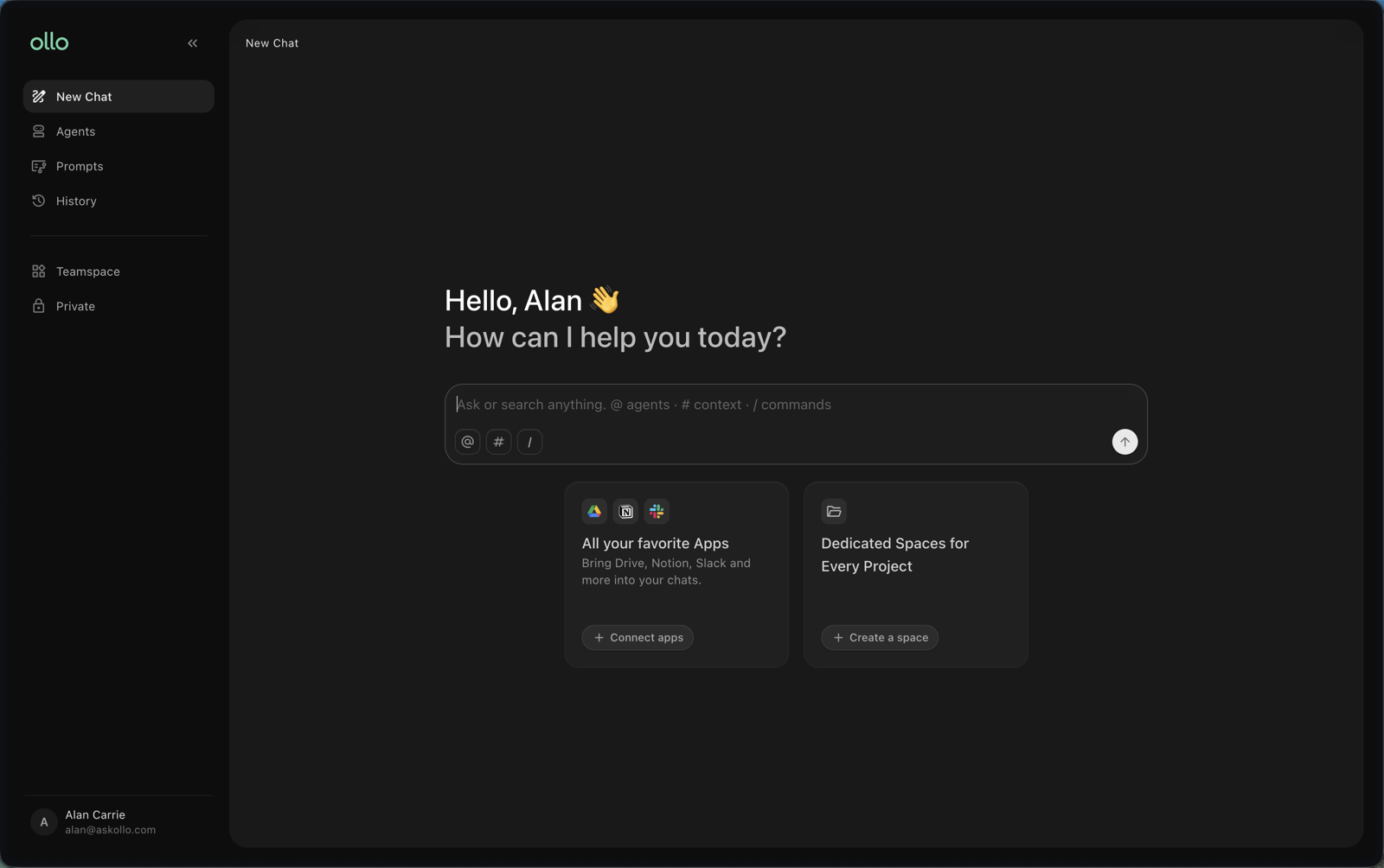
After signing in, you'll arrive on the ollo dashboard.
Take a few minutes to familiarise yourself with the main navigation. Depending on your permissions, you'll typically see:
- New Chat and the chat input
- Agents (Agent Builder)
- Prompts
- History
- Knowledge sources, split into Teamspace and Private
- Profile and Settings menu
This is your starting point for everything you'll do in ollo.
Step 2: Connect your knowledge sources
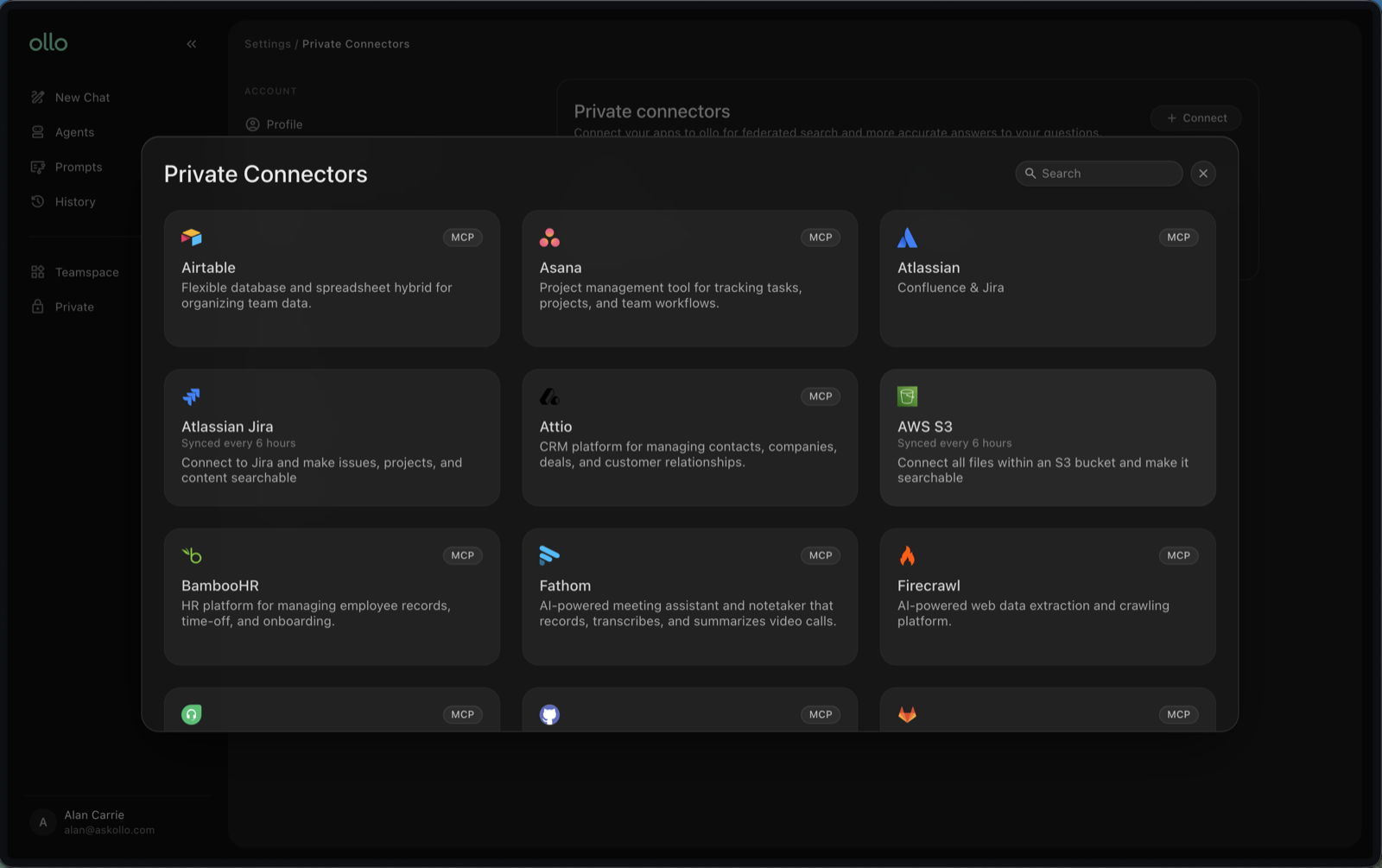
Before you can search your organisation's knowledge or build AI agents that use it, you'll need to connect the data sources you want ollo to use.
Depending on your organisation, this may include:
- Google Drive
- Gmail
- Google Calendar
- Atlassian
- Notion
- AWS S3
- Google Storage
- Many more via MCP integrations
Navigate to Settings → Org Connectors and connect your chosen data sources.
Step 3: Create a Space and sync a knowledge source
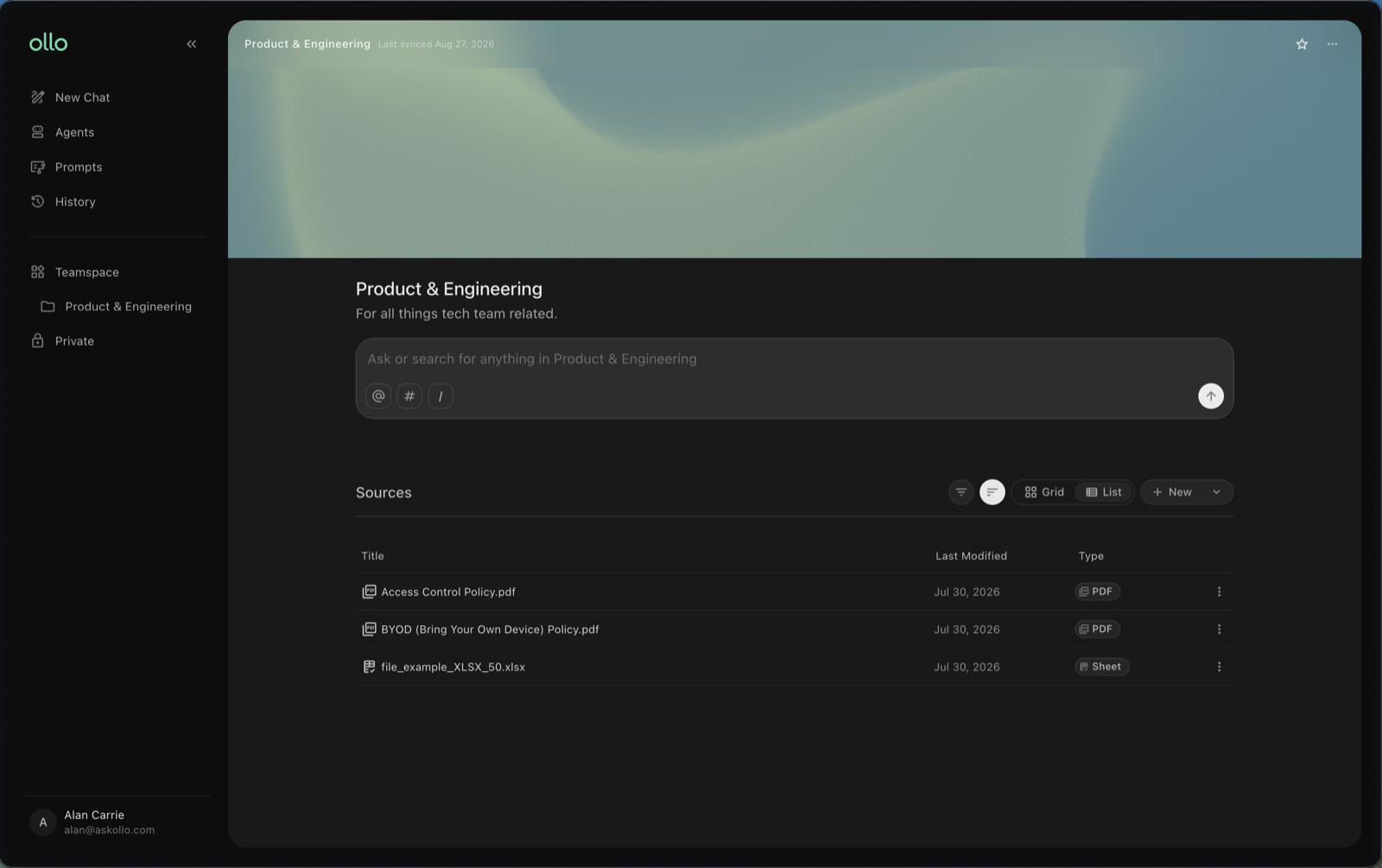
Now you'll need a Space, or Spaces, to organise the data that you sync to ollo. Spaces are either team-wide or private to an individual.
Start by creating a Teamspace: click the + icon in the sidebar, give the space a title and hit create.
Click Add Sources and select the folders from one of your connected sources that you want to sync to the space.
Once the sync is created, ollo will begin indexing your content so it can be searched and used by AI agents.
Note: depending on the size of your data, indexing may take several minutes to complete.
Check your indexing status
You'll be able to monitor the status of each connected source. Once indexing is complete, your knowledge is ready to search.
Step 4: Ask your first question
Now it's time to experience the value of ollo.
Open a New Chat and ask a question using natural language. For example:
- What is our annual leave policy?
- Where can I find the employee handbook?
- What is our expense process?
- How do I request new equipment?
Review the answer and the supporting source references to understand where the information has come from.
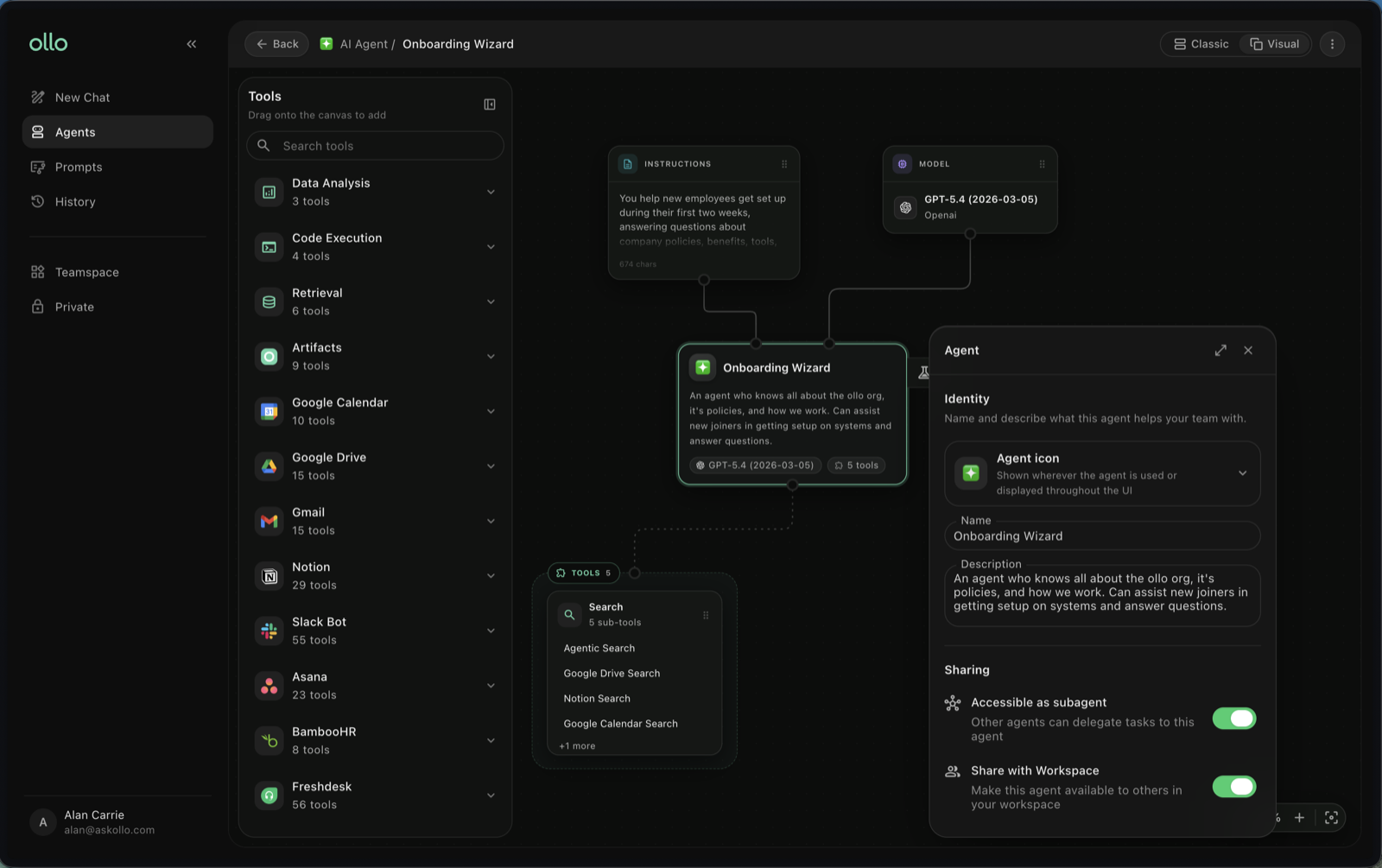
Step 5: Explore Agent Builder
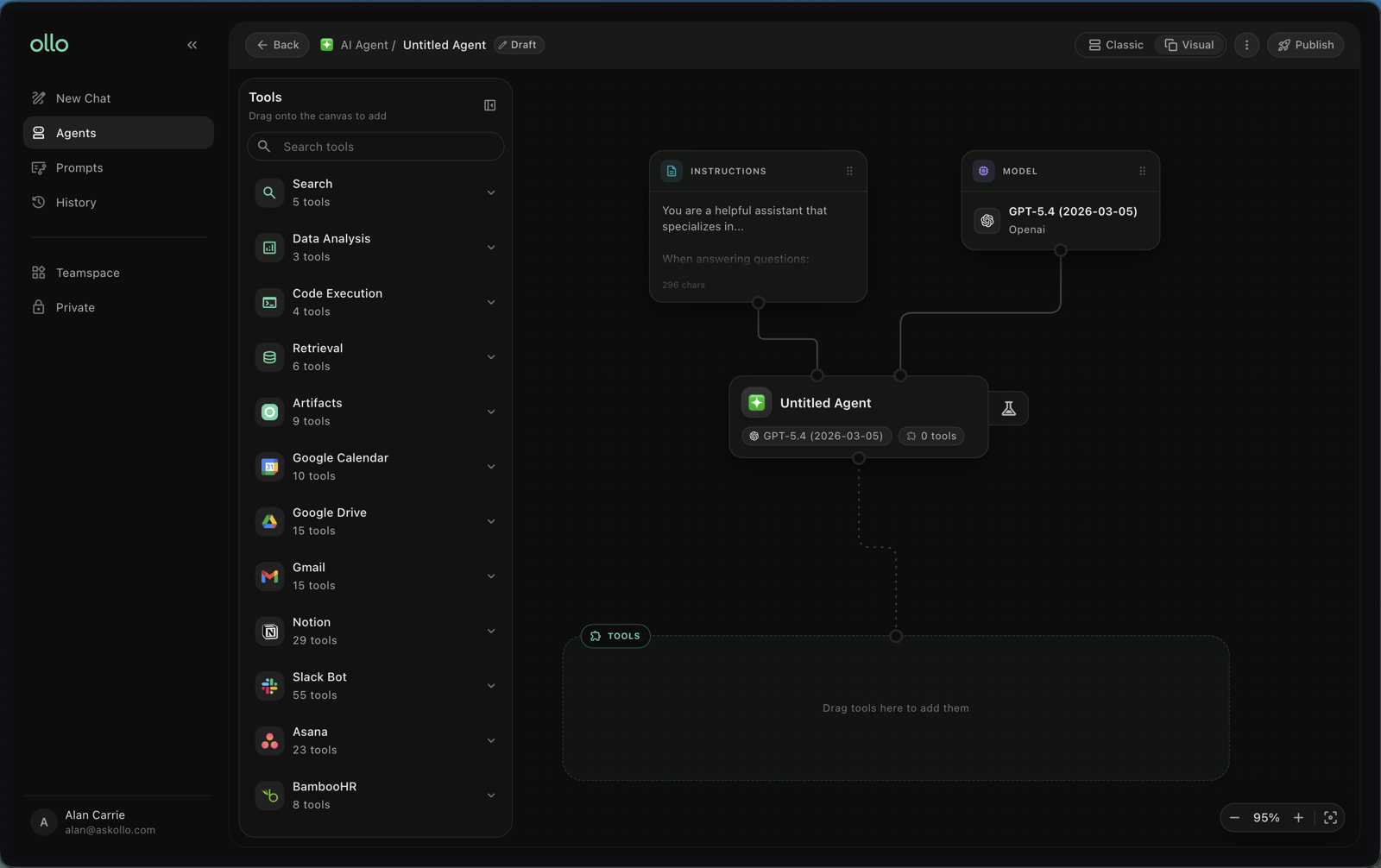
Next, open Agents. This is where you'll create AI agents that answer questions, automate repetitive work and support your team using your organisation's knowledge.
Spend a few minutes familiarising yourself with the interface and available options.
Step 6: Build your first AI agent
When you're ready, create your first AI agent. During the setup process you'll:
- Give your agent a name
- Define its purpose
- Configure its instructions
- Test its responses
For detailed instructions, continue to Build your first agent.
Where to go next
Now that you've completed the basics, continue with the guides most relevant to your goals.
If you want to search your organisation's knowledge
- Search overview
- Ask your first question
If you want to build AI agents
- Agent Builder overview
- Build your first agent
- Test and improve your agent
If you're collaborating with others
- Sharing and permissions
- Search and Agent Builder together
Tips for new users
- Start by connecting high-value knowledge sources.
- Group your knowledge from multiple sources into Spaces.
- Ask questions in natural language, just as you would ask a colleague.
- Review the source references to verify answers.
- Build simple agents first, then improve them over time.
- Return to the Resource Hub whenever you need guidance.
Frequently asked questions
Why can't I search my documents yet?
Your connected data sources may still be indexing. Wait until indexing has completed before searching.
Can I connect more than one knowledge source?
Yes. You can connect multiple supported data sources to create a single searchable knowledge base.
Do I need to build an AI agent immediately?
No. Many users begin with Search before moving on to Agent Builder.
Where can I find more help?
The Resource Hub contains step-by-step guides covering Search, Agent Builder and platform best practices.
Congratulations
You've completed the Getting started guide. You now know how to:
- Navigate the platform
- Connect your knowledge
- Search your organisation's information
- Explore Agent Builder
- Take the next steps on your ollo journey
Recommended next guides
- Search overview
- Ask your first question
- Agent Builder overview
- Build your first agent